> ## Documentation Index
> Fetch the complete documentation index at: https://resend.com/docs/llms.txt
> Use this file to discover all available pages before exploring further.
# Managing Emails
> An introduction to managing your received emails with Resend.
Your received emails are available in the [**Receiving** tab](https://resend.com/emails/receiving) of the **Emails** Dashboard page.
You can also manage your received emails using the [Receiving API](/docs/api-reference/emails/retrieve-received-email), [MCP server](/docs/mcp-server), and [CLI commands](/docs/cli#receiving) for tasks such as retrieving full email details and attachments.
## View email details
All received emails are stored and available on the [**Emails** Dashboard page](https://resend.com/emails) as they arrive.
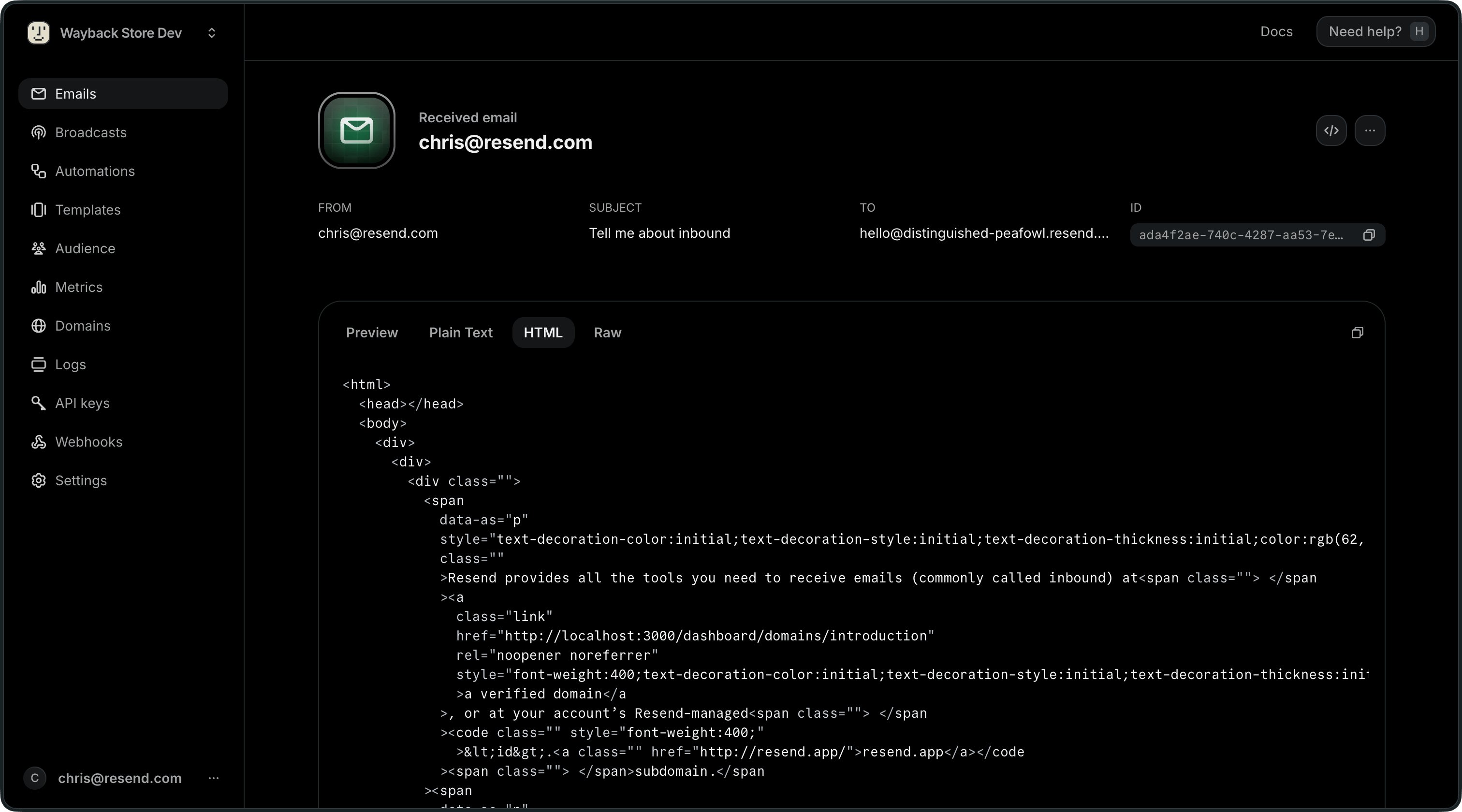
In the [**"Receiving"** tab](https://resend.com/emails/receiving), select any email to view its associated metadata. View the sender address, recipient address, subject, unique id, and more. Each email also contains a **Preview**, **Plain Text**, **HTML**, and Raw version to visualize the content of your received email in its various formats.
 If your webhook endpoint is down, you can still replay individual webhook events from the [Webhooks Dashboard page](https://resend.com/webhooks). You can also retrieve your emails at any time using the [Receiving API](/docs/api-reference/emails/retrieve-received-email) and the [receiving CLI commands](/docs/cli#receiving).
## Export your data
Admins can download your data in CSV format for the following resources:
* Emails
* Broadcasts
* Contacts
* Segments
* Domains
* Logs
* API keys
Currently, exports are limited to admin users of your team.
To start, apply filters to your data and click on the "Export" button. Confirm your filters before exporting your data.
If your exported data includes 1,000 items or less, the export will download immediately. For larger exports, you'll receive an email with a link to download your data.
All admins on your team can securely access the export for 7 days. Unavailable exports are marked as "Expired."
All exports your team creates are listed in the
[Exports](https://resend.com/exports) page under **Settings** > **Team** >
**Exports**. Select any export to view its details page. All members of your
team can view your exports, but only admins can download the data.
## API Reference
For complete API documentation, see the [Receiving API reference](/docs/api-reference/emails/retrieve-received-email).
If your webhook endpoint is down, you can still replay individual webhook events from the [Webhooks Dashboard page](https://resend.com/webhooks). You can also retrieve your emails at any time using the [Receiving API](/docs/api-reference/emails/retrieve-received-email) and the [receiving CLI commands](/docs/cli#receiving).
## Export your data
Admins can download your data in CSV format for the following resources:
* Emails
* Broadcasts
* Contacts
* Segments
* Domains
* Logs
* API keys
Currently, exports are limited to admin users of your team.
To start, apply filters to your data and click on the "Export" button. Confirm your filters before exporting your data.
If your exported data includes 1,000 items or less, the export will download immediately. For larger exports, you'll receive an email with a link to download your data.
All admins on your team can securely access the export for 7 days. Unavailable exports are marked as "Expired."
All exports your team creates are listed in the
[Exports](https://resend.com/exports) page under **Settings** > **Team** >
**Exports**. Select any export to view its details page. All members of your
team can view your exports, but only admins can download the data.
## API Reference
For complete API documentation, see the [Receiving API reference](/docs/api-reference/emails/retrieve-received-email).